
Partial Delivery/Pickups
This document provides a comprehensive guide on how to set up and manage partial deliveries and pickups.
Invoice Settings
To utilise the partial deliveries and pickups feature, it is crucial that the record is classified as an Invoice. Additionally, the following conditions must be met:
The Invoice must not have a "Hired From" date for partial deliveries.
The Invoice must not have a "Hired To" date for partial pickups.
When these dates are populated at the overall Invoice level it implies that ALL items on the Invoice have already been dispatched/delivered or returned/picked up.
Partial Delivery
Once your Invoice meets the necessary criteria, you can initiate a partial delivery. Click on the blue Item Actions link and then select Delivery (Partial).
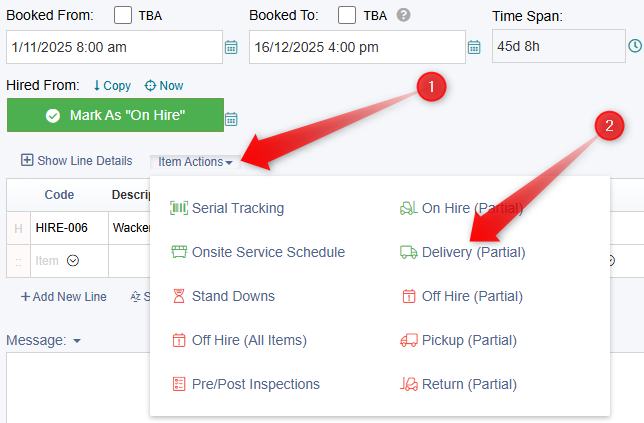
Following this, a new screen will appear, displaying a Delivery Date/Time field. Here, you can enter the scheduled time for the partial delivery.
Next, select the checkbox next to each item that will be partially delivered on that date, and then click the Action Selected Items button.
For further details on how partial deliveries are recorded, please refer to our help guide: Delivery/Pickup Schedule Help Guide.
Partial Pickup
To schedule a partial pickup, it is necessary for the Invoice or the individual item to be marked as "On Hire". This requires the presence of a "Hired From" date.
If the conditions are met, click on the blue Item Actions text and select Pickup (Partial).
A new screen will then display a Pickup Date/Time field where you can enter the time for the partial pickup.
Similar to the delivery process, select the checkbox next to each item that will be partially picked up on that date, and then click the Action Selected Items button.
For additional information on how partial pickups are recorded, please refer to our help guide: Delivery/Pickup Schedule Help Guide.