
Percentage Calculation Items
In HirePOS, it is possible to set up items to use a rate that is calculated based on a percentage of other prices on the same Invoice.
This is often used for damage waivers, environmental levys, surcharges and other fees.
Setting Up a Non-Stock Item
Go to Setup > Items and click +New Item.
Typically, any percentage calc item will be "Non-Stock" since they are not a physical item, so you'll want to ensure the item is assigned to an Item Type that is NOT a hire item type.
Then, click the Configuration section of the Item's setup screen and tick the Non-Stock checkbox.
Next, you'll want to click into the Rates/Prices tab of the item's setup screen and give the item a "Each" unit with a price of $0.00 for now.
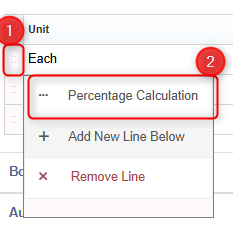
After that, click the "dots" to the left of the unit description, then click "Percentage Calculation" as per the screenshot below
Configuring Percentage Calculation Prices
This screen allows you to configure exactly how a percentage-based calculation item will behave.
Charge Percentage
Start by entering the percentage you wish to charge in the “Charge %” field at the top of the screen. This determines the rate that will be applied to the selected items.
Discounted vs Retail Prices
Next, choose whether discounts should be included in the calculation:
% of Discounted Price – uses the item price after any discounts have been applied.
% of Retail Price – ignores discounts and calculates based on the original retail price.
Tax Exclusive vs Tax Inclusive Prices
Select whether the calculation should be based on the Tax Exclusive or Tax Inclusive amount. Simply choose the option that matches how you want the percentage to be calculated.
Items Used for the Calculation
This section controls which items are included in the percentage calculation:
% of previous line item – calculates the percentage using only the line item directly above the % calculation item.
% of all Hire items – calculates the percentage using all Hire items on the record.
% of ALL items – calculates the percentage using every item on the record, regardless of type.
Final Price Output
Finally, choose where HirePOS should apply the calculated amount — Tax Exclusive or Tax Inclusive.
💡 In most cases, this should match the Tax Ex / Tax Inc option selected earlier to ensure consistent pricing.
Save and Use
Click Save Changes to apply your settings.
Once saved, this item can be added to a Sales Record like any other item. The percentage calculation will automatically update whenever items, prices, or discounts on the record change.