
Cross Hire - Rate/Price based Costs
This document provides a comprehensive guide on how to set up cross hire costs in HirePOS. Cross hire costs can be configured as either a percentage against the cross hire owner or as a fixed cost against the rates and prices. Follow the steps outlined below to ensure proper configuration.
Assigning Item Types for Cross Hire
To begin, it is essential to assign a "Cross Hire" Item Type to any cross hire item. This can be accomplished by navigating to the following path:
Setup > Item Related > Item Types
If you already have an item type designated as a cross hire, you will see a "Cross Hire" badge displayed in the Type column.
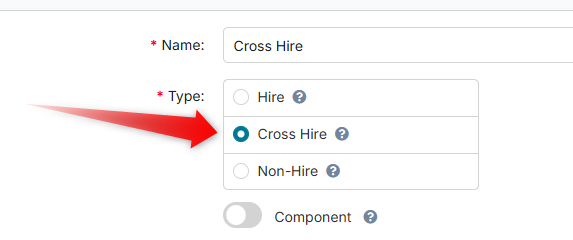
If such an item type does not exist, you can create a new one by following these steps:
Click the "+ New Item Type" button.
Provide a name for the item type, for example, "Cross Hire".
Ensure the Type radio button is set to "Cross Hire".
Click "Save Changes" at the bottom right of the screen.
Setting Up Rate/Price Costs for Cross Hired Items
Once the item type is established, you can set up the rate or price costs associated with the cross hired item. To do this, follow these steps:
Navigate to Setup > Items.
Select the item you wish to edit.
Ensure the "Item Type" dropdown is set to a Cross Hire item type.
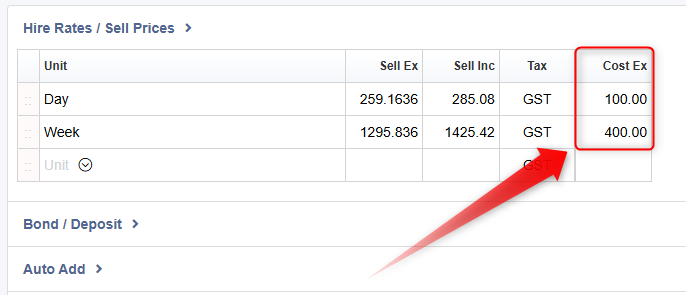
When the Item Type is correctly set, you will notice a "Cost Ex" column visible in the "Rates/Prices" tab. Here, you can enter the cost per day, cost per week, or any other relevant costs associated with the selling units configured for the item.
Selecting the Cross Hire Owner
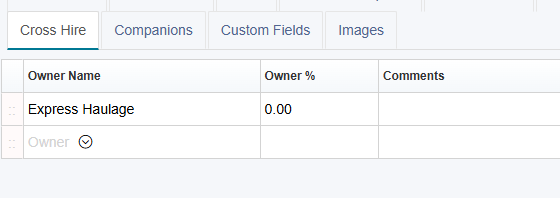
To finalise the setup, click on the "Cross Hire" tab in the item details screen. From there, you can select the Cross Hire Owner using the "Owner Name" column. Cross Hire Owners are established as Suppliers through the following path:
Setup > Suppliers
If the desired owner name does not appear in the supplier list, you can use the arrow icon located in the app menu bar at the top right (the icon to the left of the help icon "?") to open a new web browser tab. In this new tab, navigate to Setup > Suppliers to set up the supplier. After completing the supplier setup, the owner will be available in the "Owner Name" dropdown list within the item details Cross Hire tab. Leave the Owner % as the default 0.00 if you are using Rate/Price Costs instead. Any Rate/Price costs take priority over percentage based costs for reporting.
By following these steps, you will successfully configure cross hire costs in HirePOS, ensuring a streamlined process for managing cross hire items.