
Cross Hire - Creating Purchase Orders
This document provides a comprehensive guide on how to create Purchase Orders for Cross Hire through the Invoice screen. By following these steps, users can efficiently link Purchase Orders to Invoices, ensuring a streamlined process for managing cross hire transactions.
Creating Purchase Orders from the Invoice Screen
For optimal management of Cross Hire transactions, it is recommended that all Purchase Orders be created directly from the Invoice screen. This method automatically links the Purchase Order to the Invoice and displays it in the "Orders" tab for easy reference.
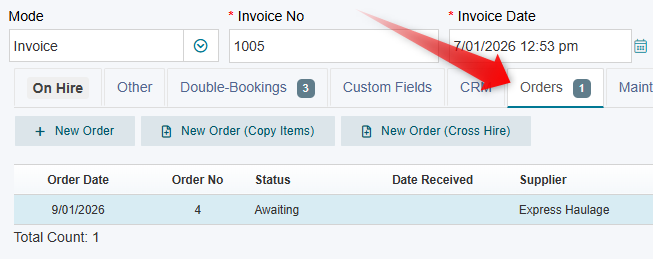
Accessing the Orders Tab
In the Booking/Invoice screen, where you are hiring to the end customer, navigate to the "Orders" tab. Here, you will find three distinct "New Order" buttons, each serving different purposes:
New Order: This option creates and links a new order without auto-selecting a supplier or copying any items over.
New Order (Copy Items): This option creates and links a new order while copying all tangible Hire or Sales items (excluding non-stock items) over to the new order.
New Order (Cross Hire): This is the preferred option for cross hire transactions. It copies over any items classified as Cross Hire and automatically selects the Supplier if a cross hire owner is available.
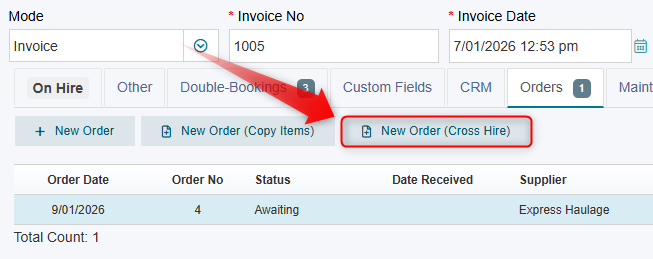
Using the New Order (Cross Hire) Button
When you select the "New Order (Cross Hire)" button, the system will perform the following actions:
It will copy over the Code, Description, Quantity, and Selling Unit to the new Purchase Order.
The costs will be derived from the relevant item Rate/Price Unit costs that you have previously set up against the item.
This automated process significantly streamlines the creation and linking of a Purchase Order to be sent to the cross hire owner, enhancing efficiency in managing cross hire transactions.