
Offset Credit Notes against Invoices
In certain situations, it may be necessary to offset existing Credit Notes against Invoices that have outstanding balances. This process allows for a more efficient management of customer accounts and ensures that both Credit Notes and Invoices are accurately reflected in your financial records.
Understanding Credit Notes
A Credit Note can be thought of as a negative Invoice. For instance, if a customer has a $200 Credit Note, it represents a -$200 balance. When you offset a Credit Note against an Invoice, you are effectively applying the Credit Note amount to reduce the outstanding balance of the Invoice. This results in two payment records being created in a single step.
Example Scenario
Consider the following example: a customer has an Invoice totaling $1000 with a $1000 balance owing, and they also possess a $200 Credit Note.
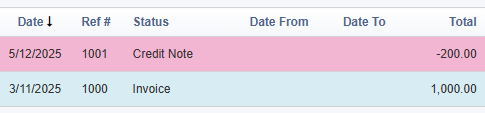
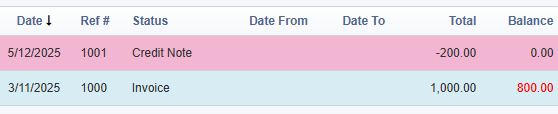
By offsetting the $200 Credit Note against the $1000 Invoice, the Credit Note balance becomes $0.00, while the Invoice balance is reduced to $800.
Steps to Offset a Credit Note Against an Invoice
Navigate to the top menu bar in HirePOS and select Payments > Receive Payments.
Select the customer whose accounts you wish to manage. You will see any outstanding Invoices or Credit Notes listed.
Locate the "$0.00 (Offset Credits Only)" button towards the top center of the page and click it. This action ensures that the payment amount is set to $0.00, allowing for the offset of Credit Notes only.
The system will automatically set the "Amount Received" to $0.00 and apply the Credit Notes first, offsetting them against any outstanding Invoices. In our example, $-200 is applied to the $200 Credit Note, and $200 is applied to the $200 Invoice, resulting in a Total Applied of $0.00.
Enter a meaningful "Memo" to clarify the purpose of the offset, which will assist in addressing any future queries.
Click the Save New button located at the bottom right to apply the payment record.
Reviewing the Changes
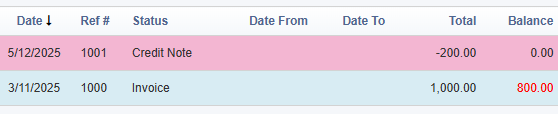
After completing the offset process, you can revisit the Sales/Hire > Customer Overview screen. You will observe that the Credit Note now reflects a $0.00 balance, while the Invoice shows an $800 balance instead of the original $1000.
This method aligns with how accounting software manages credits, ensuring that your Invoices, Credit Notes, and Payments (offset) records are seamlessly exported to your accounting software.