
Update Subscription Billing Information
This document provides a step-by-step guide on how to update your subscription billing information, including your address, phone number, and payment card details in HirePOS.
Accessing Your Account Details
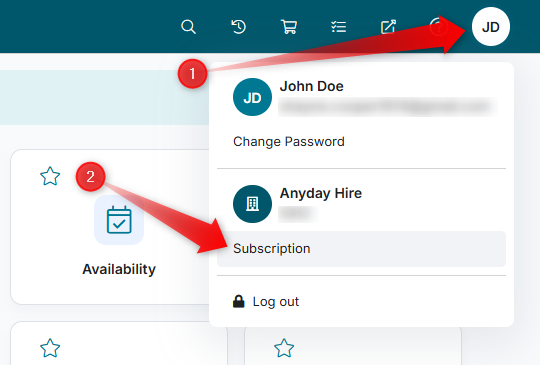
1. Click the user icon located at the top-right corner of the HirePOS menu bar.
Navigating to the Subscription Page
2. Select the Subscription option to navigate to the HirePOS Subscription page.
Reviewing Your Billing Information
3. On the Subscription page, you will find two tabs: Invoices and Billing Information. Click on the Billing Information tab.
4. Review the current billing details that we have on record.
Updating Your Information
If any changes are necessary, click the Update Billing Information button located at the bottom of the page. This action will open a new web browser tab for the Customer Information Form.
The Customer Information Form will display any existing information as greyed-out placeholder text. Enter the updated information into the relevant fields as required.
Payment Card Details
If you pay your HirePOS subscription by payment card and would like the card to be securely stored for future subscription payments, you can securely submit your payment card details using the Customer Information Form.
Enter the required card details in the "Payment Card" section of the form. These details will be used to set up your card for ongoing subscription payments.
Direct Debit Payments
We do not offer Direct Debit for automatic withdrawals from your bank account.
Instead, if you prefer to pay your subscription directly from your bank account, we recommend setting up an automatic recurring payment through your online banking portal.
This approach is simpler and gives you full control over the payment arrangement, including the payment amount, timing, and the ability to change or cancel the payment directly through your bank.
Once you have made the necessary updates, click the Submit Form button located at the bottom-right of the page.
Review Process
After submitting your updated information, we will review and accept the changes, typically within 24 hours during business hours (Monday to Friday).