
Set up an Authenticator App login
Protect your HirePOS account by setting up two-factor authentication (2FA), also known as multi-factor authentication (MFA), with an authenticator app. Before you begin, install an authenticator app on your phone. Using a laptop or tablet alongside your phone can make setup easier.
Start setup in HirePOS
Go to the HirePOS login screen.
Enter your email address and password, then select Sign in.
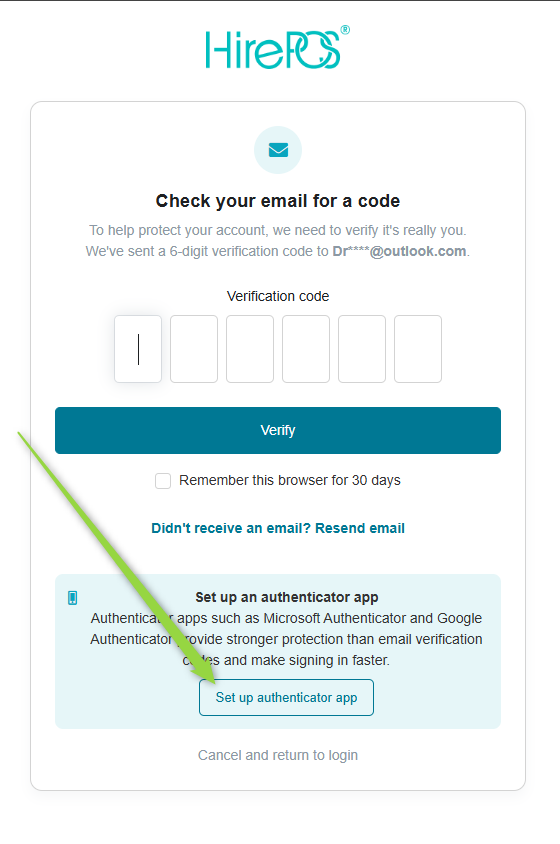
On the next screen, select Set up an authenticator app below the code entry area.
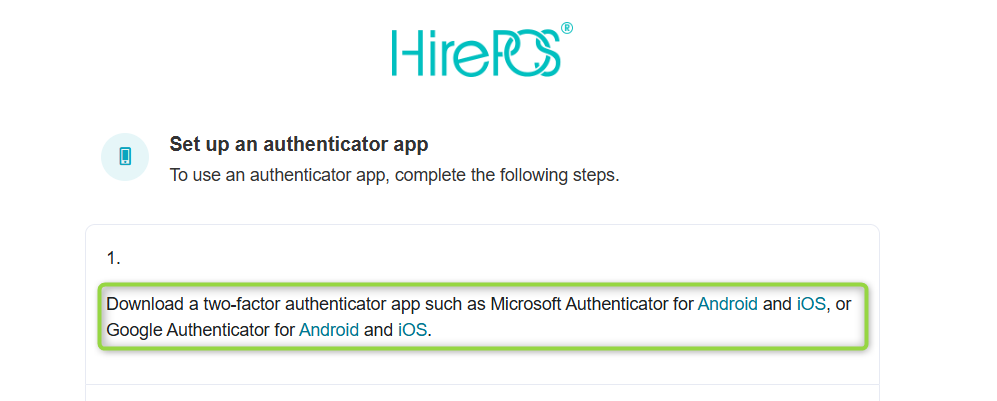
Choose an authenticator app to install on your phone, if you have not already installed one.
Add your HirePOS account to the authenticator app
Open your authenticator app and add a new account. You can scan the QR code displayed on the HirePOS setup screen, or enter the setup key manually if you are completing the process on your phone only.
Microsoft Authenticator
Open Microsoft Authenticator and tap the add-account icon.

To use a QR code, scan the code displayed on the HirePOS screen using your phone.
If you are setting up on your phone only, choose the option to enter a code manually. Copy the key from the HirePOS setup screen and follow the app’s prompts to add the account. Enter the account details and HirePOS login screen URL if requested.
Google Authenticator
Open Google Authenticator and tap Add a code.
To use a QR code, select Scan a QR code and scan the code displayed on the HirePOS screen using your phone.
If you are setting up on your phone only, select Enter a setup key. Enter an account name, then copy the key from the HirePOS setup screen into the key field. Leave the key type set to Time based.
Verify your setup
Once the HirePOS account appears in your authenticator app, select it to view the six-digit one-time code. Enter that code on the HirePOS login screen to complete setup.
Your authenticator app is now set up for your next HirePOS sign-in. You will need to enter a current code from the app when prompted.