
Assign multiple Contacts to a Sales/Hire record
The Contacts tab on a Sales/Hire record lets you keep track of additional people involved with a particular quote, booking, invoice, or job.
For example, you might assign:
Site contacts
Event coordinators
Project managers
Accounts contacts
Other people involved with the job
You can assign multiple contacts to a Sales/Hire record and add an optional Note to describe each person's role or provide job-specific information.
Contacts assigned through the Contacts tab are for reference on that particular Sales/Hire record. They are separate from the primary Contact shown with the customer details at the top of the Sales/Hire record.
Show the Contacts Tab
Before using this feature for the first time, you will need to enable the Contacts tab on the Sales/Hire record screen. This is a once-off setting for each HirePOS user.
To enable the Contacts tab:
Go to Sales/Hire > Customer Overview.
Click the options cog button.
Toggle on Show 'Contacts' tab on sales/hire record screen.
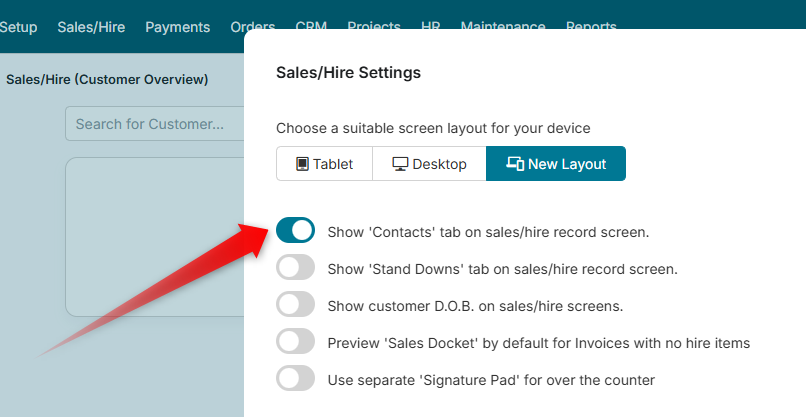
Once enabled, the Contacts tab will be available when you open a Sales/Hire record.
You can return to the same setting at any time if you want to hide the Contacts tab. Hiding the tab does not remove any contacts already assigned to Sales/Hire records.
Add a Contact to a Sales/Hire Record
A contact must already exist under the customer before it can be assigned to a Sales/Hire record.
To assign a contact:
Open the Sales/Hire record.
Select the Contacts tab.
Click Add Contact.
Search for and select one of the customer's contacts.
Optionally enter a Note relevant to the contact's involvement with this job.
Click Add Contact.
The contact will now appear in the Contacts tab.
You can assign multiple contacts to the same Sales/Hire record. However, the same contact cannot be assigned more than once to the same record.
Add a Note for a Contact
The Note field can be used to record information specific to the contact's involvement with this particular Sales/Hire record.
For example:
Site contact — call on arrival
Project manager for this job
Access available after 8:00am
Contact for delivery questions
The Note applies only to the contact's assignment on this Sales/Hire record. It does not change the contact's details in the customer record.
This means the same customer contact can be assigned to different Sales/Hire records with a different Note on each one.
Edit an Assigned Contact
To change an assigned contact or their Note:
Open the Contacts tab.
Click the contact you want to edit.
Change the contact or Note as required.
Click Save Changes.
Remove a Contact
To remove a contact from a Sales/Hire record:
Open the Contacts tab.
Click the contact you want to remove.
Click Remove Contact and confirm.
Removing a contact from the Sales/Hire record does not delete the contact from the customer's contact list.
Contacts on a New Sales/Hire Record
A new Sales/Hire record must be saved before contacts can be assigned to it.
If you open the Contacts tab while creating a new record, click Save & Continue first. Once the record has been saved, you can assign contacts to it.
Primary Contact vs Contacts Tab
There are two ways customer contacts can be associated with a Sales/Hire record.
The primary Contact shown with the customer details identifies the main contact associated with the Sales/Hire record.
The Contacts tab is used to assign additional contacts involved with that particular quote, booking, invoice, or job.
Adding, changing, or removing someone in the Contacts tab does not change the primary Contact.
Contacts assigned through the Contacts tab also do not automatically:
Receive emails relating to the Sales/Hire record
Appear on Quote, Booking or Invoice documents
Change the customer or primary Contact
Change the underlying Customer Contact record
If you need to create a new customer contact or configure contacts to automatically receive invoices and statements, see the Customer Contacts guide.